

How to delete Instagram account (complete step by step)
Alright guys, in this guide you’ll learn properly how you can delete your Instagram account permanently. The process is actually very simple, but a lot of people get confused because different accounts show different options. So just follow everything step by step and you’ll understand it clearly.
First of all, open your Instagram application and make sure the account is already logged in — because without logging in, you won’t be able to delete or deactivate the account.
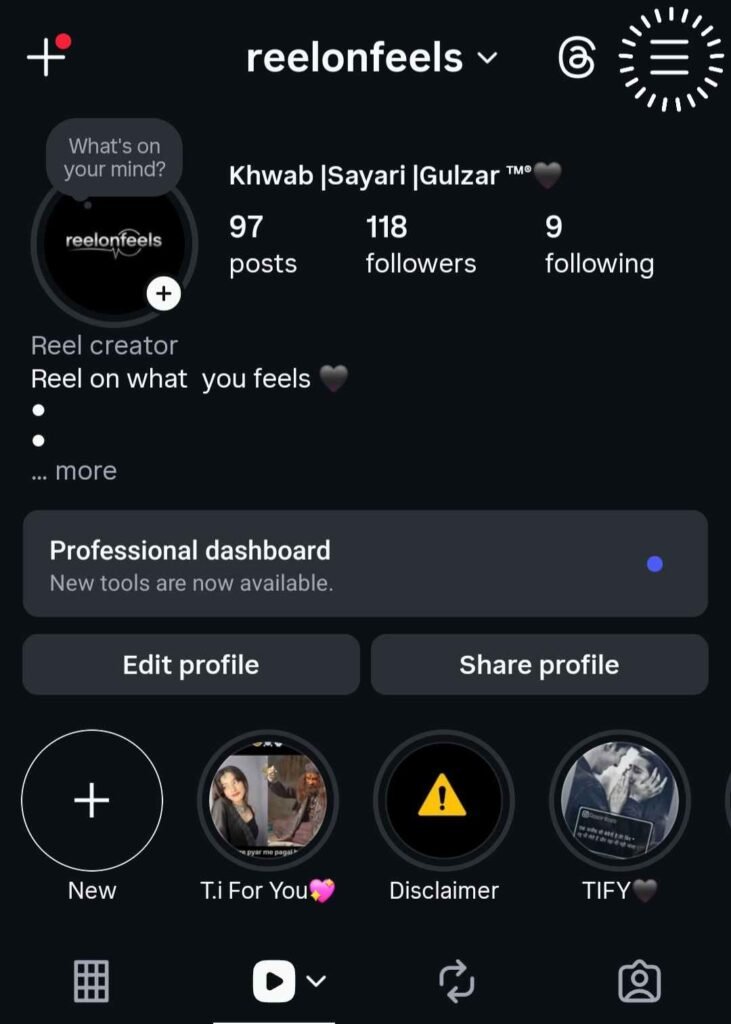
Now once your account is open, look at the bottom right side — you’ll see your profile icon. Tap on it and go to your profile page.
After that, look at the top right corner — you’ll see the three lines (≡). Tap on that.
Now after clicking on it, you’ll see multiple options. From here:
- Click on Account Center
- Then go to Personal Details
Inside Personal Details, you’ll be able to see all your account information like your email, phone number, and date of birth.
Now from here:
- Click on Account Ownership and Control
- Then tap on Deactivation and Deletion
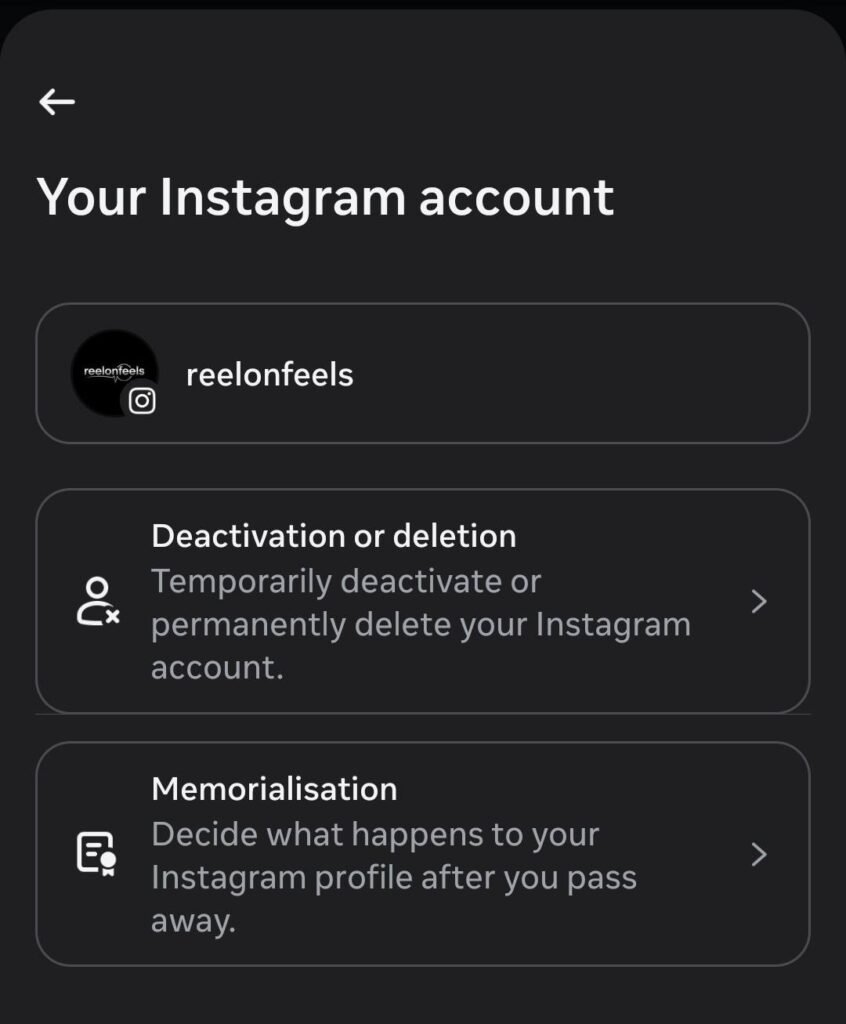
Now here you will see all the accounts connected with your email or number. Some people may also see their Facebook account if it is linked.
From here, select the account that you want to delete.
After selecting, you’ll see two options on the next screen:
- Deactivate Account
- Delete Account
Now understand this properly — if you deactivate, your account is only hidden temporarily. But if you delete, everything will be removed permanently.
So if you want permanent removal, select Delete Account and click on Continue.
After clicking continue, a new screen will appear where it will explain that all your account information will be deleted. It may also show that your Threads profile and all linked data will be removed.
Now it will ask you for a reason.
You can select any reason from the list — for example:
- Too busy
- Too distracting
After selecting the reason, scroll down and click on Continue.
Next step:
Here you will get an option to export your data like posts, followers, etc. If you want, you can export it. Otherwise, just scroll down and click on Continue again.
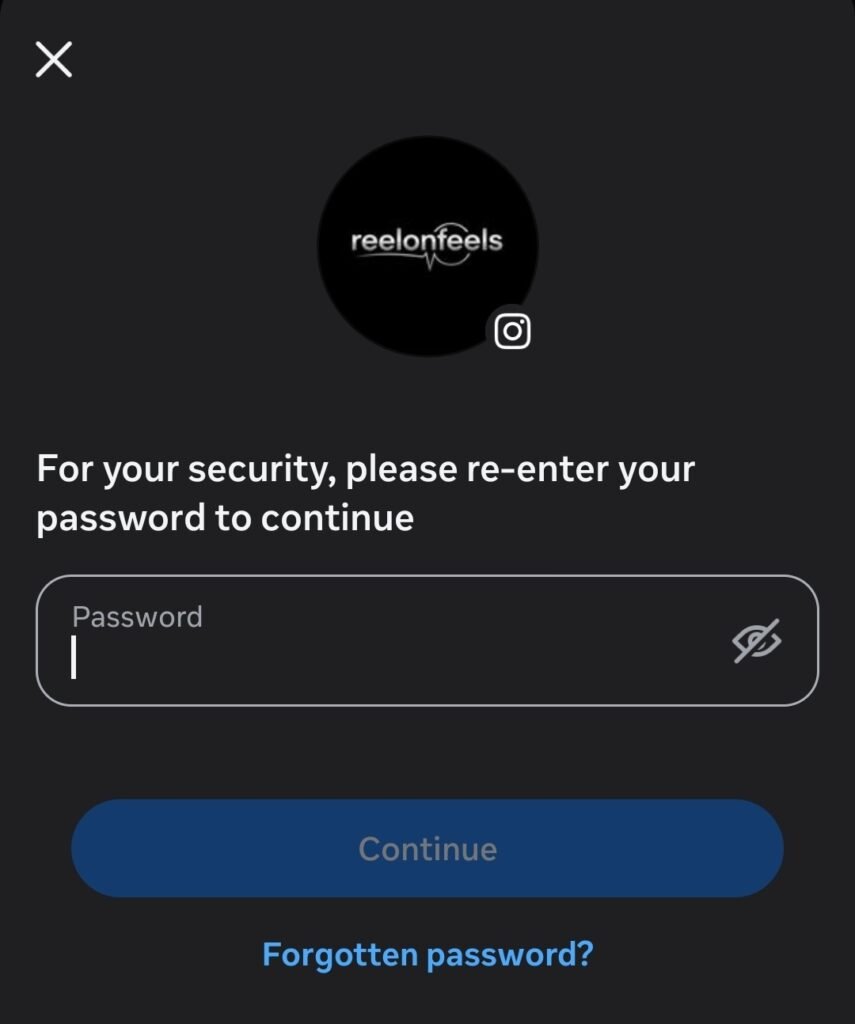
Now it will ask you to enter your password.
If you remember your password, enter it. If you don’t remember, you can use the forget password option and reset it using OTP.
After entering the password, click on Continue.
Now here comes the important part.
After continuing, you’ll see a date on your screen.
This date is very important.
What it means is:
1. You must NOT log in to your Instagram account until that date
2. If you log in before that date, your account will be reactivated
3. If you don’t log in until that date, your account will be permanently deleted
So now, simply click on Delete Account.
And that’s it — your account will be scheduled for permanent deletion.
How to deactivate Instagram account (temporary)
Now if you don’t want to delete your account permanently and just want to take a break, you can deactivate it.
Again, open Instagram and make sure your account is logged in.
Go to your profile → click on three lines → open Account Center.
Now here:
- Click on Deactivation and Deletion
- Select your account
After selecting, choose Deactivate Account and click on Continue.
Next:
- Enter your password
- Click continue
Now it will ask you the reason for deactivation.
You can select something like:
- Just need a break
Then click on Continue again.
Now you’ll see another option where you can choose:
- Automatically reactivate in 1 to 7 days
- Or select Don’t reactivate automatically
If you want full control, select the second option.
After that, click on Deactivate Account.
Your account will be logged out and deactivated.
What happens after deactivation
- Your account will not be visible to anyone
- It will show like “user not found”
- But nothing is deleted
Whenever you log in again, your account will be activated and everything will come back — followers, posts, reels, everything.
If you don’t see the option (important solution)
Many people say they don’t see Account Ownership and Control option.
This happens because Instagram shows different options for different accounts.
If you don’t see it, do this:
- Go back from Account Center
- Scroll down and click on Help
- Then open Help Center
Now in the search bar, type: account delete
You will see an option: permanently delete or deactivate your Instagram account
Click on it.
Then scroll down and click on Account Center (blue link).
Now it will take you to the same page where:
- Click on Deactivation and Deletion
- Select your account
- Follow the same steps
Important things to remember
- Deactivate = temporary (comes back after login)
- Delete = permanent (everything removed)
- Do not log in until the given date after deletion
- Always remember your password before doing this
Also Read:
Instagram Edits App: Complete Guide for Video Editing (2026)