
If you are looking for the best app for Instagram editing or searching for good editing apps for Instagram, then Instagram’s new Edits App can be very useful for you.
This app is specially designed for people who create Instagram Reels, YouTube Shorts, or Facebook videos in vertical format.
It is an official app, free to use, and allows you to export videos in high resolution, even in 4K. In this article, everything is explained in simple language so you can easily understand how to use it.
What is Edits App and Why It is Useful
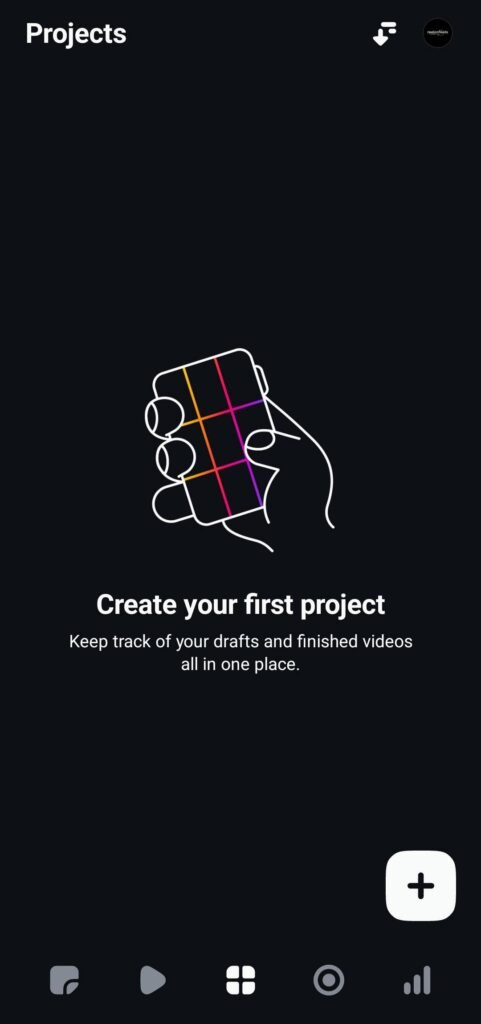
This app is being rolled out gradually to users. If you already have Instagram installed and updated, you might see this app automatically. Otherwise, you can search it on the Play Store.
It is a complete editing solution where you get multiple tools in one place, including video editing, audio, text, filters, effects, green screen, cut-out, captions, stickers, ideas, inspiration, and insights.
If you are searching for terms like instagram editor download or best app for Instagram editing, this app can be a strong option.
What You See When You Open the App
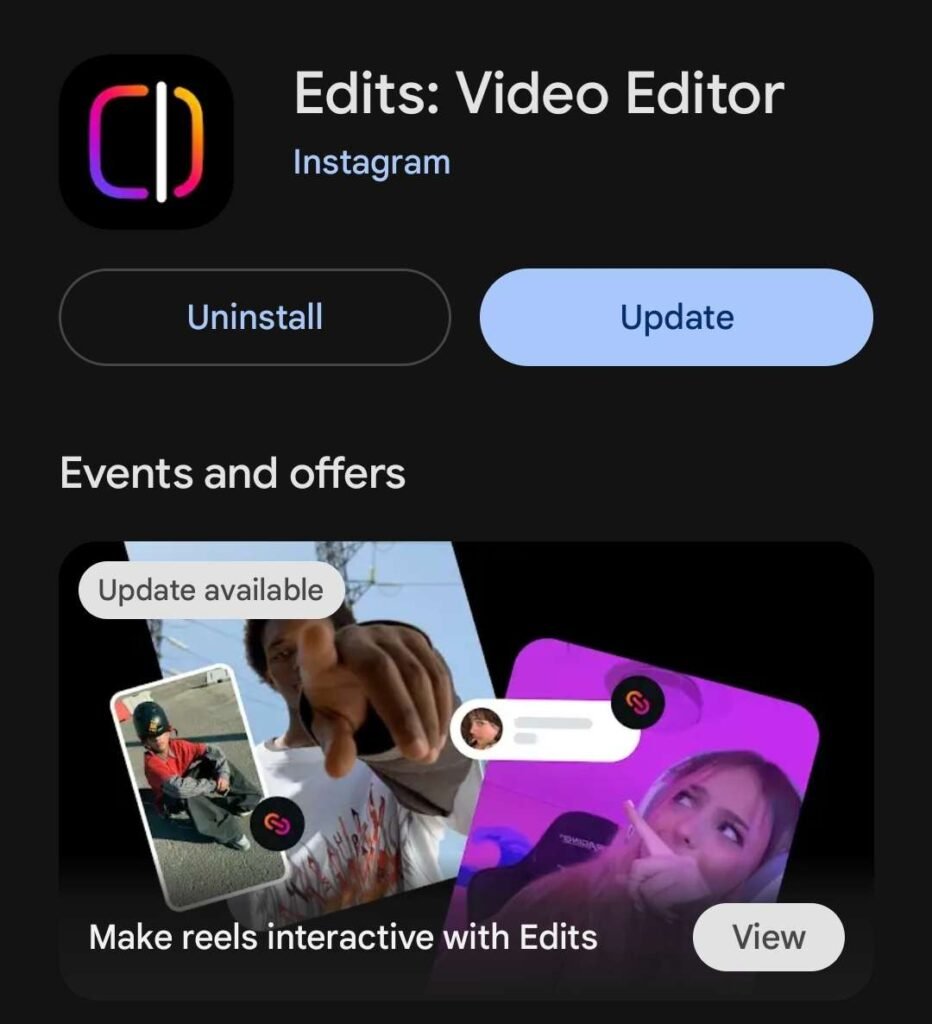
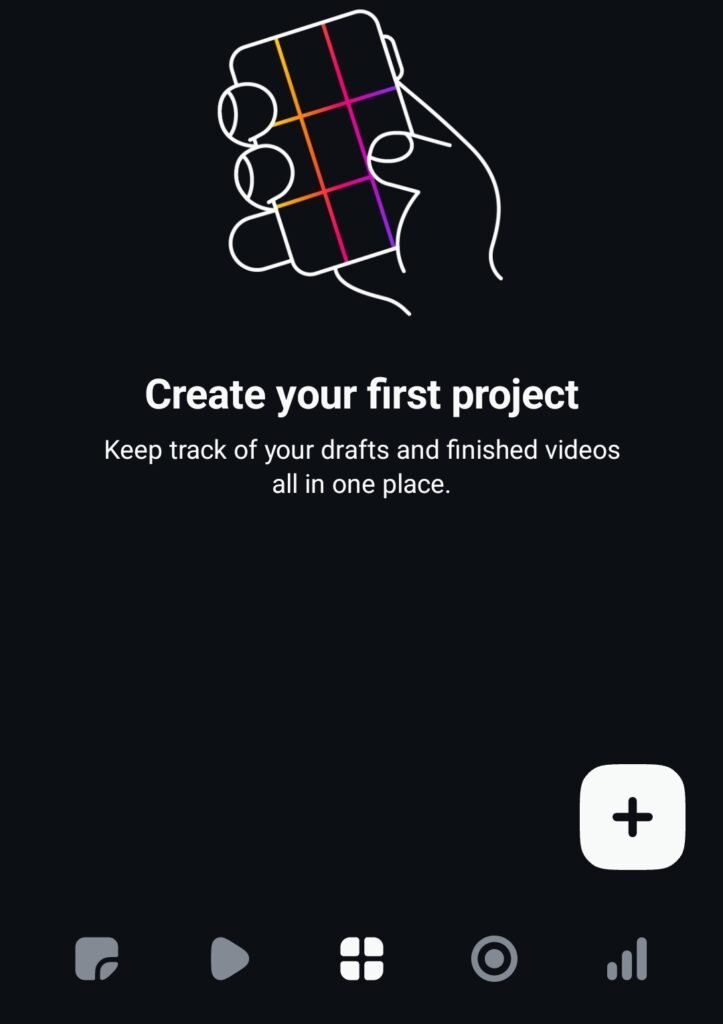
When you open the app, the first screen shows the projects window. If you have already created projects, they will appear here. Otherwise, the screen will be blank.
At the bottom right, there is a plus icon. When you tap on it, your gallery opens, and you can select any video you have already recorded. You can also use the camera inside the app.
Once you select a video, a new project is created.
Timeline and Basic Editing Tools
The app shows a timeline where you can edit your video. At the top, there is a preview, and at the bottom, there is a scrollable timeline.
To edit a specific part, you must first tap and select that clip. When selected, it is highlighted, and editing tools appear.
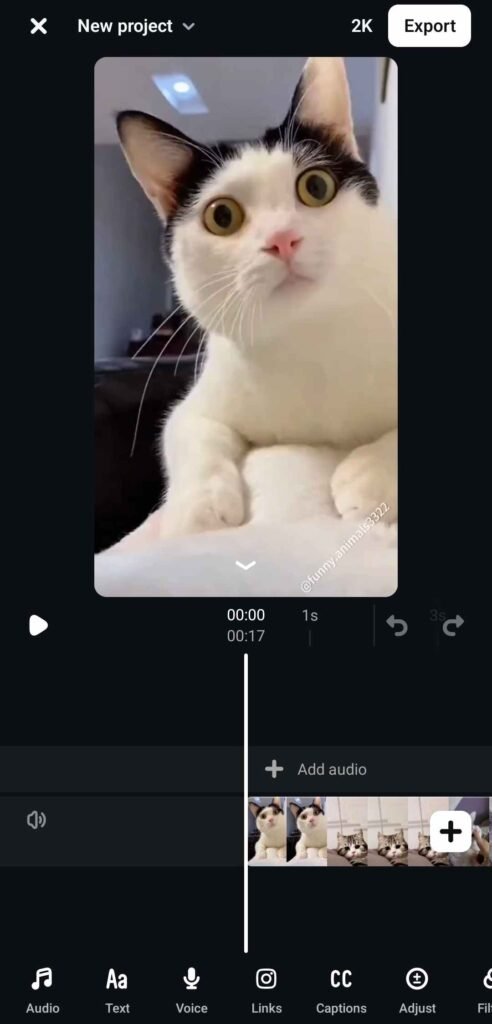
Split Tool
The split tool is used to cut a video into parts.
For example, if you want to remove the first few seconds, you can split the video at that point. The video will be divided into two parts. You can then delete the unwanted section.
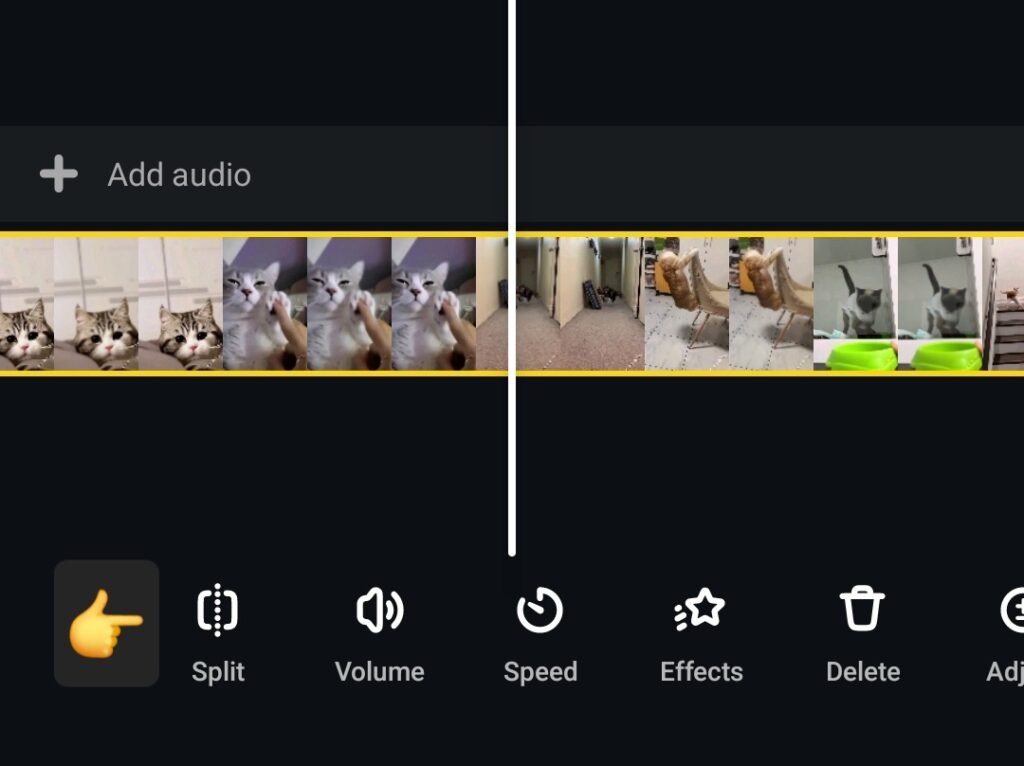
Volume Tool
The volume tool allows you to control the audio level of your video.
You can increase or decrease the sound. If you do not want the original audio, you can set the volume to zero.
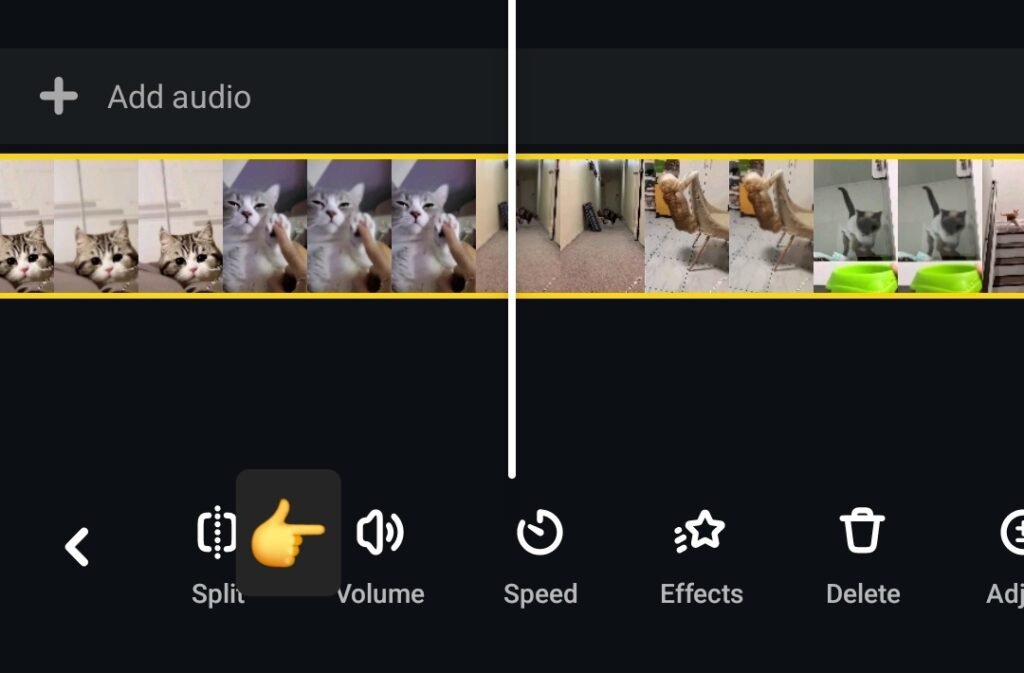
Speed Tool
With the speed tool, you can make your video slow motion or fast.
You can increase speed up to 10x or reduce it to 0.1x for slow motion.
For smooth slow motion, your video should be recorded at higher FPS (50 or 60 FPS). Otherwise, it may look laggy.
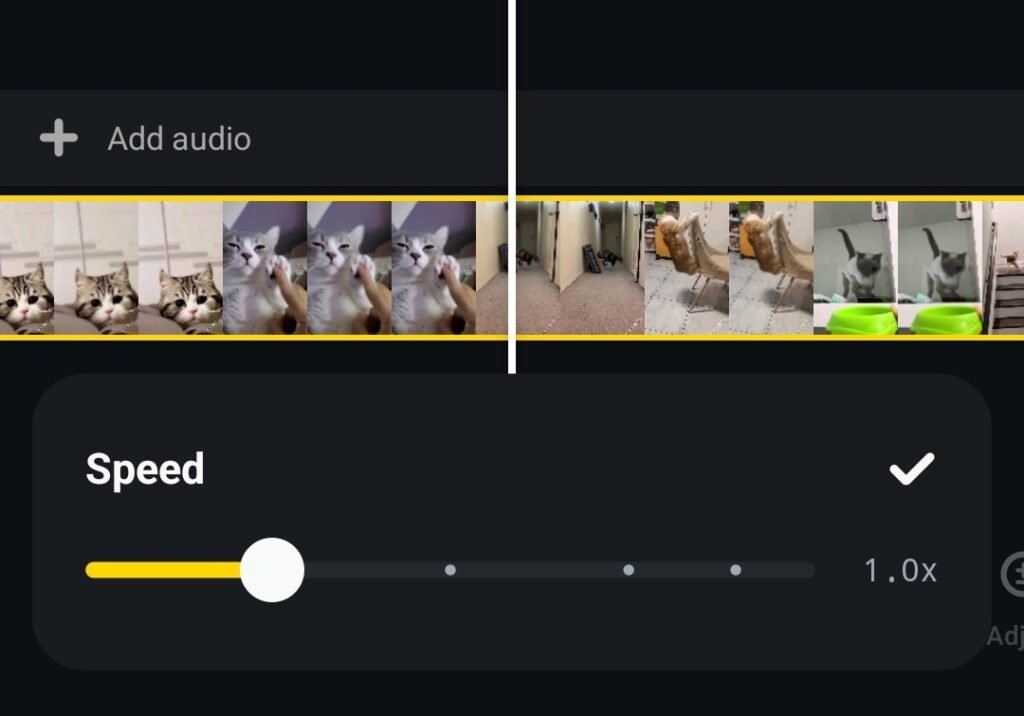
Adjust Tool
The adjust tool gives you manual control over your video look.
You can adjust:
- Brightness
- Contrast
- Warmth
- Saturation
- Fade
- Highlights
- Shadows
- Vignette
- Sharpness
This helps improve lighting and overall video quality.
Image: Adjust panel with brightness, contrast, and saturation controls
Filters
Filters help you quickly change the look of your video without manual color grading.
You can choose different styles and see the preview before applying them. Once applied, a yellow indicator shows that changes have been made.
If you are searching for the best app for Instagram photo editing, this app also provides useful filter options, although it is mainly for video.
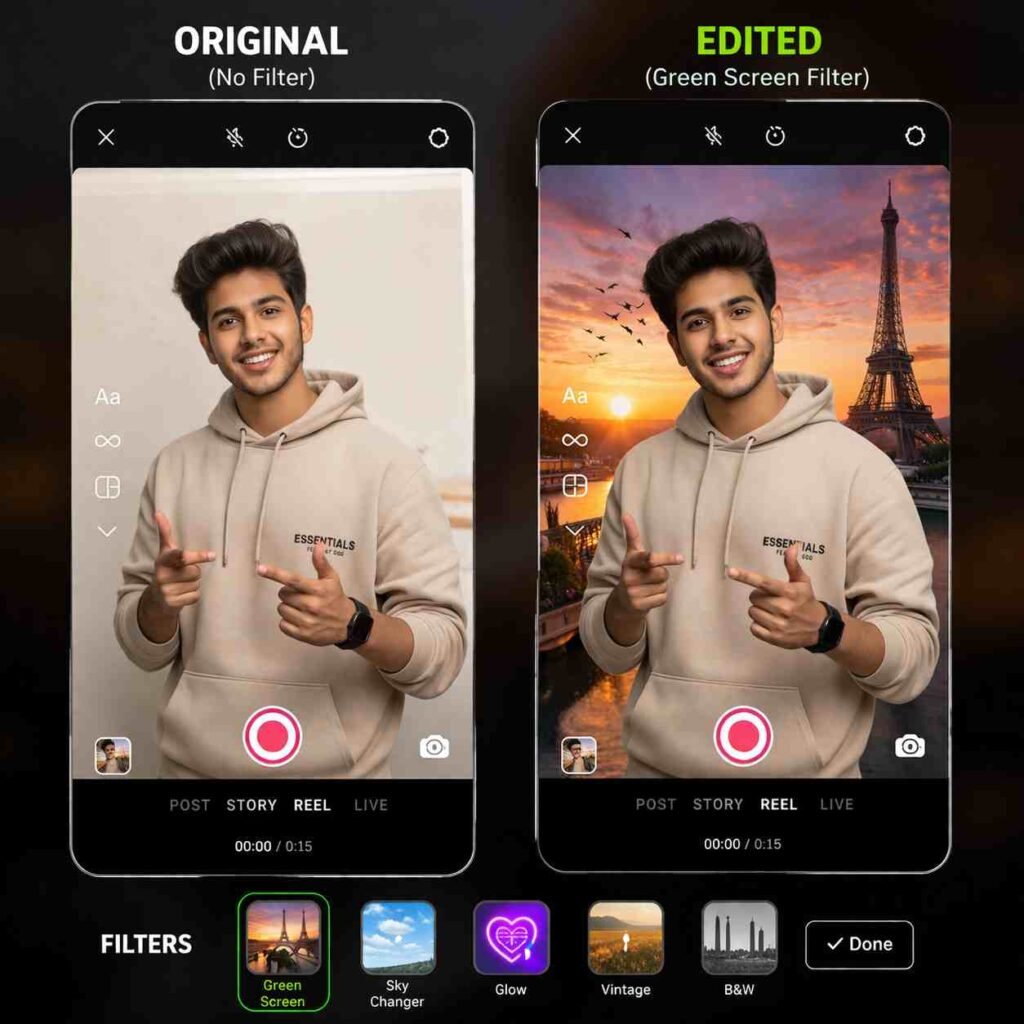
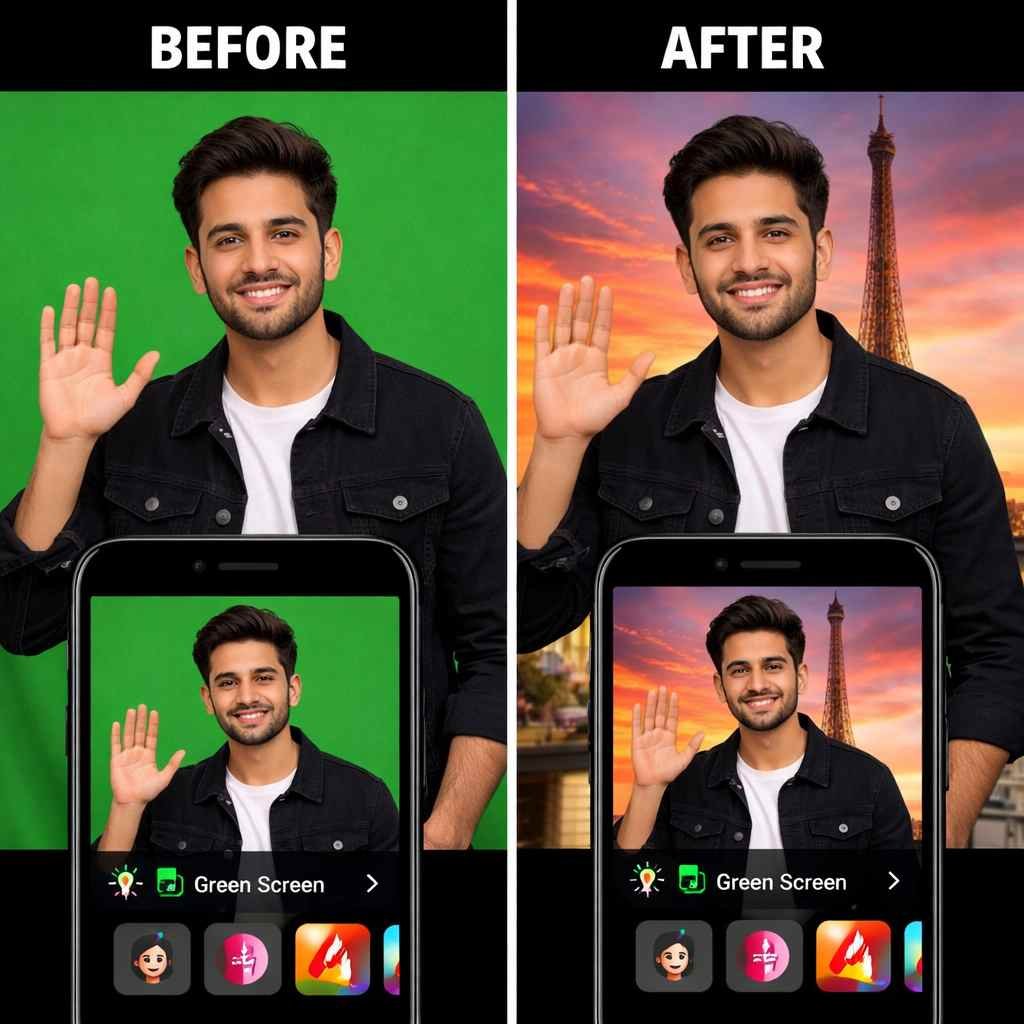
Green Screen Feature
The green screen feature allows you to place yourself over another background or video.
You can record your reaction and adjust your position in real time. This makes it easier to create reaction content without using multiple layers.
Keep in mind that only the recorded portion will remain after applying the effect.
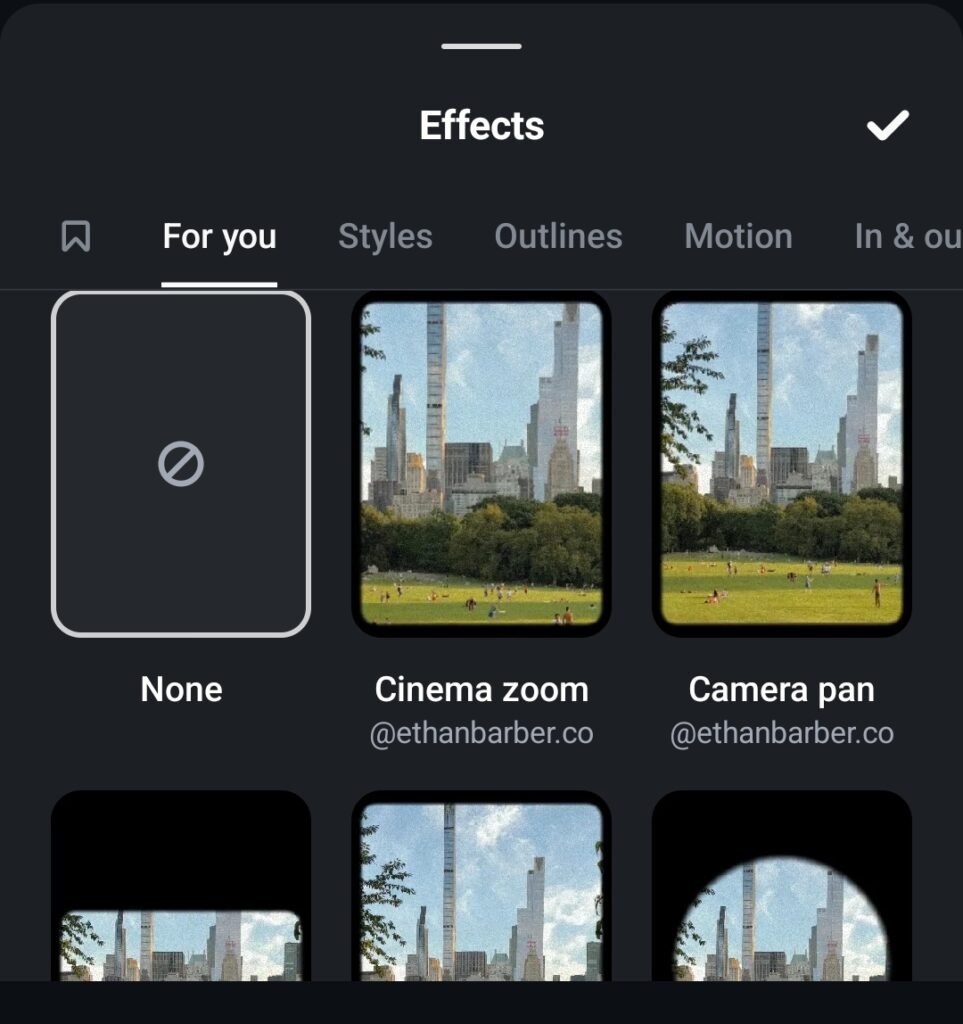
Effects Section
The effects section includes options like blur, flicker, steady, white frame, and grid.
These effects can be used to enhance your video creatively depending on your content style.
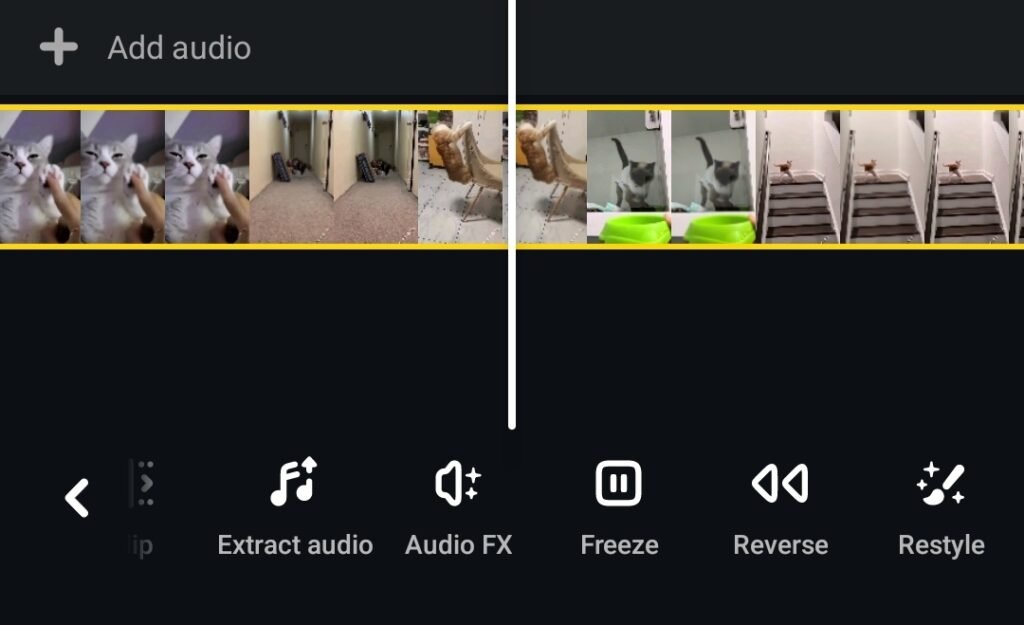
Voice Effects and Audio Extract
You can change your voice using different voice effects like helium or echo.
The audio extract feature allows you to separate audio from a video and edit it independently.
Mirror and Duplicate
Mirror flips your video horizontally, and duplicate creates a copy of your clip.
These are basic but useful editing tools.
Image: Mirror and duplicate options
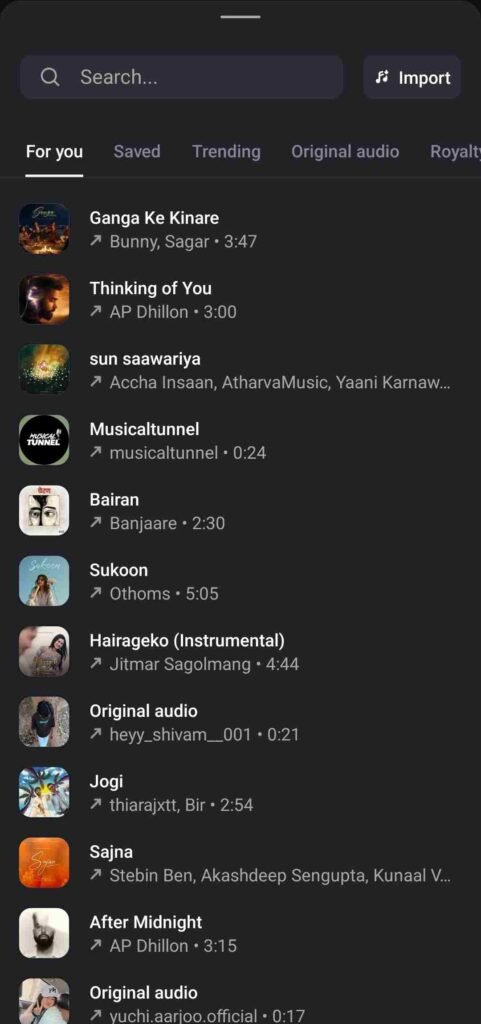
Audio Section
You can add music or sound from different categories:
- For You
- Saved
- Trending
- Original Audio
- Search
- Import
This makes it easy to add audio directly without switching apps.
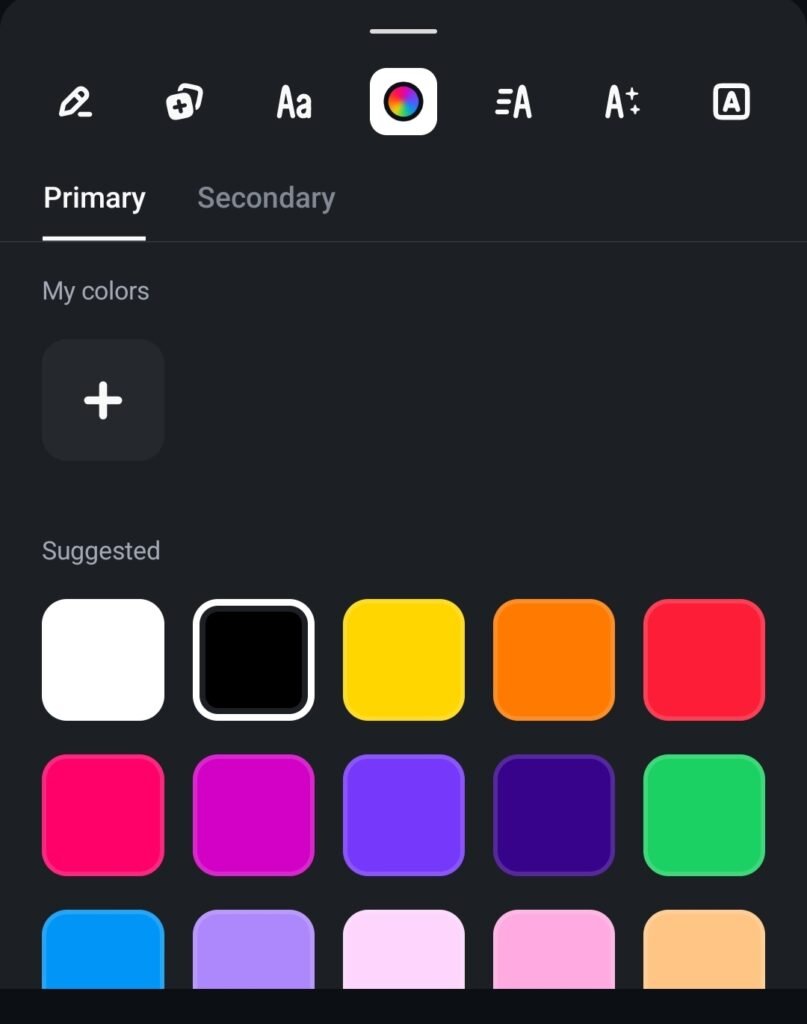
Text Tool
The text tool allows you to add captions or titles to your video.
You can customize font, color, position, and effects directly inside the app.
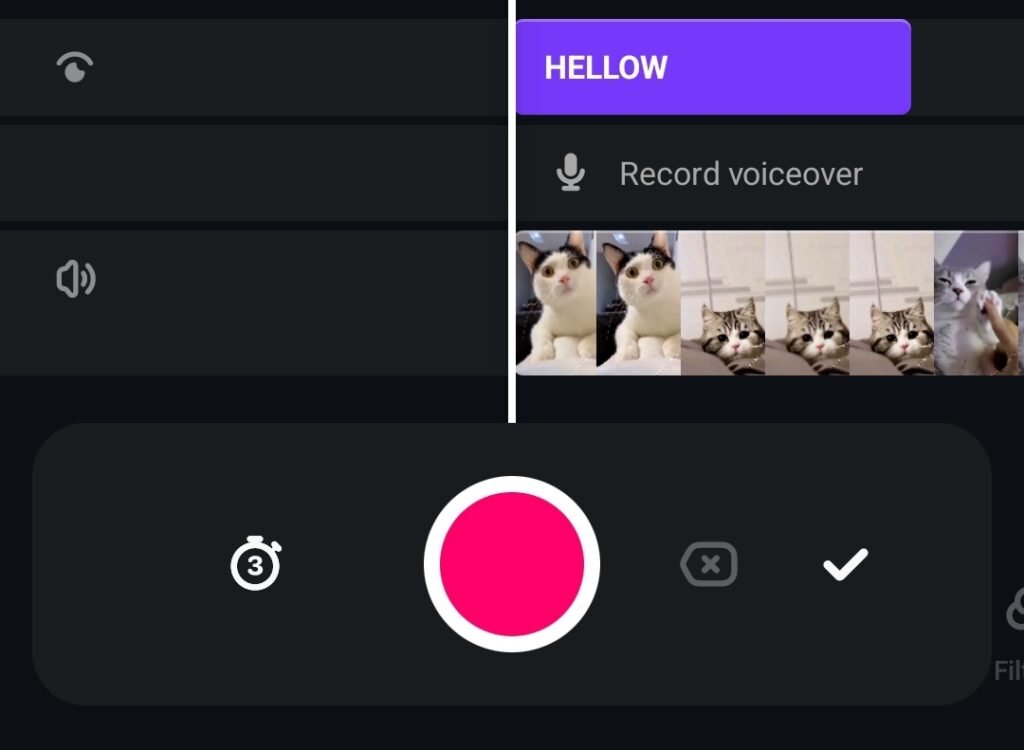
Voice Recording
You can record voice-over directly while watching your video.
This is useful for explaining or narrating your content.
Captions Feature
The captions feature works better for English. It may not perform well for Hindi-to-English conversion.
Overlay Feature
You can add another video or image on top of your main video using overlay.
This is useful for layered editing.
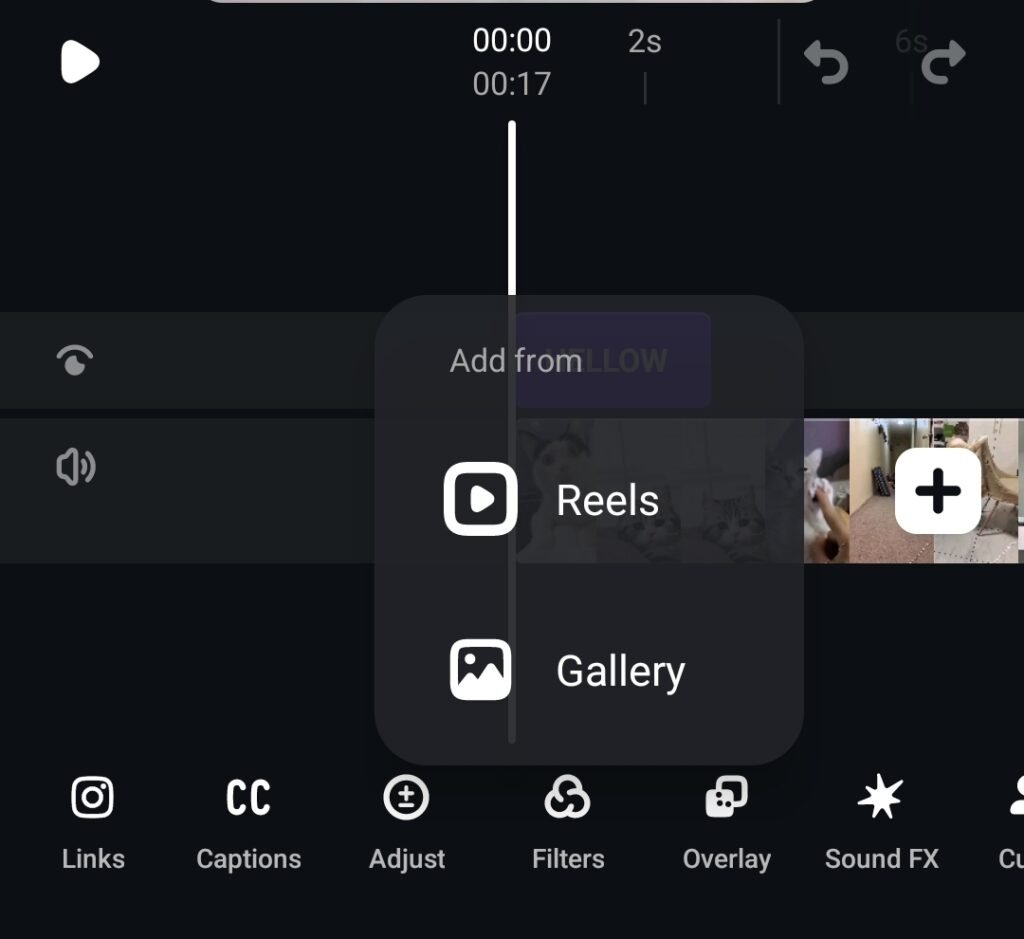
Sound Effects
You can add different sound effects like action, comedy, reaction, and transitions.
Cut Out Feature
The cut-out feature removes the background from a selected clip and isolates the subject.
You can then place it on another video layer
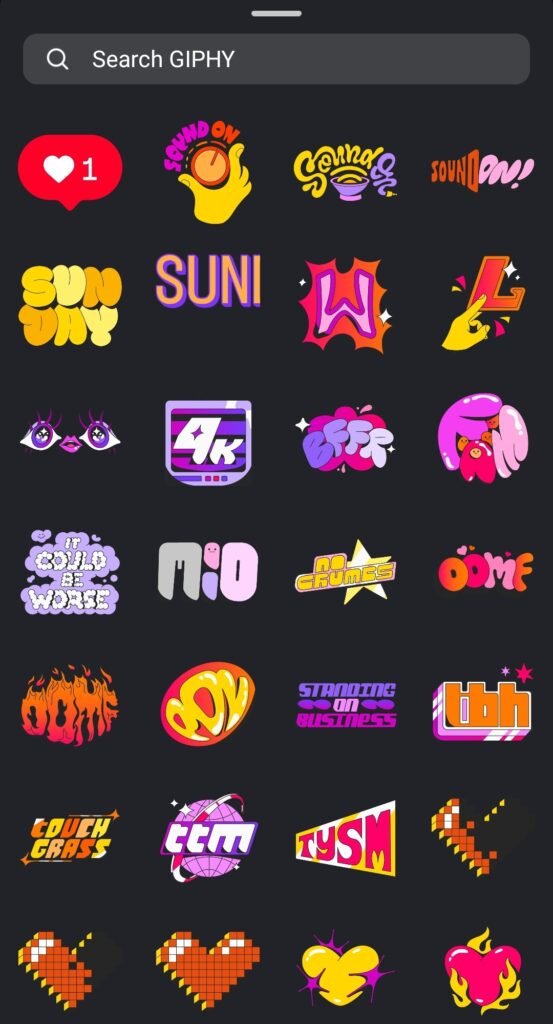
Stickers
You can add stickers to your video for extra visuals.
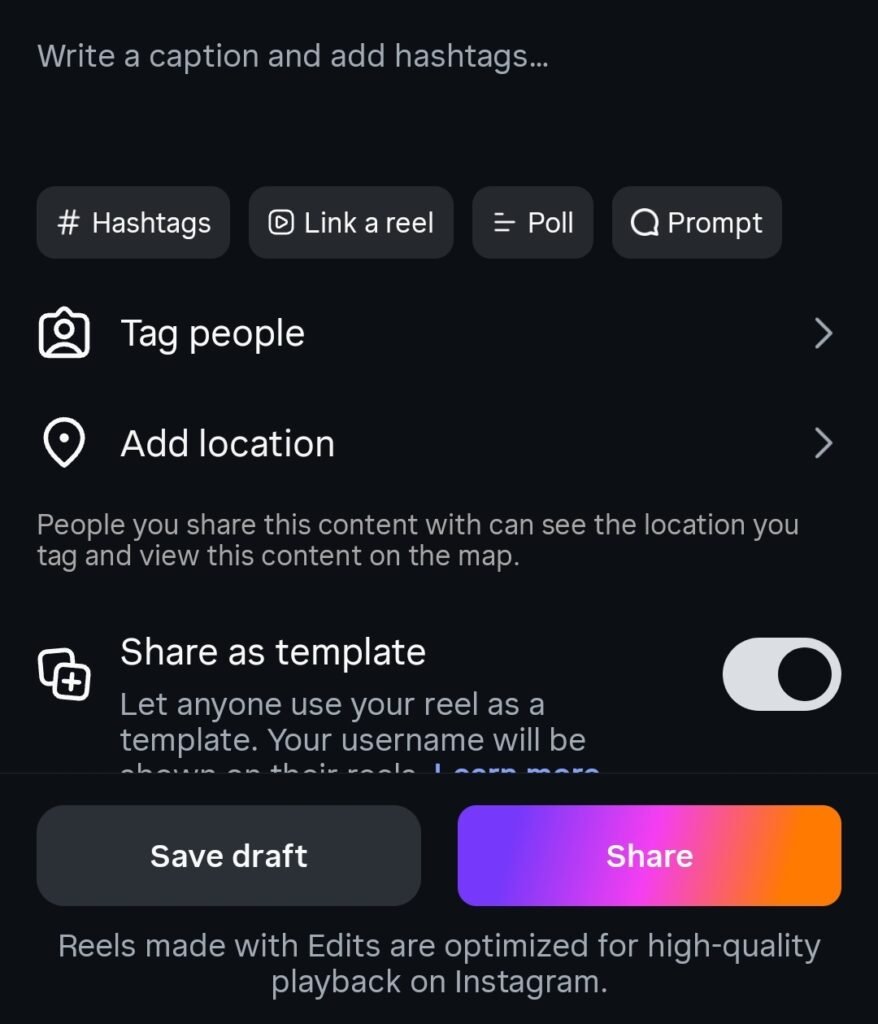
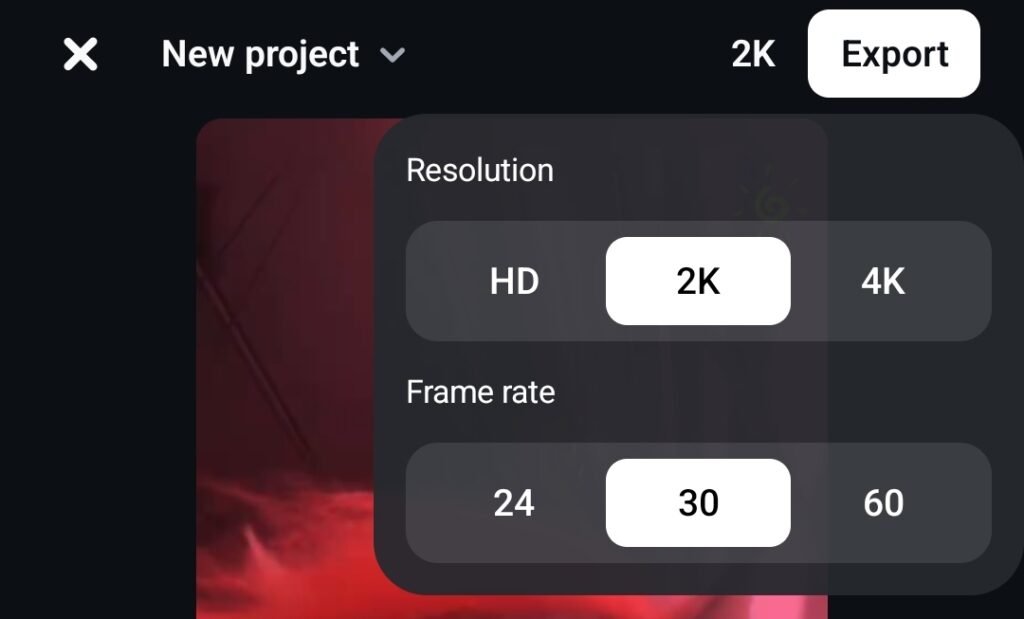
Export Options
After editing, you can export your video in 2K, 4K, or HD.
You can also choose HDR or SDR depending on your preference.
Once exported, you can directly share it on Instagram or Facebook.
Ideas Section
You can save content ideas using notes or stickers inside the app
Inspiration Section
You can watch reels for inspiration and directly use their audio to create a new project
Camera Section
The app also includes a built-in camera where you can shoot videos in different resolutions and FPS.
It also supports background change and green screen while recording.
Insights Section
The insights section shows performance data like:
- Views
- Reach
- Watch time
- Skip rate
- Share rate
- Save rate
This helps you understand how your content is performing and how to improve it
Summary
If you create content for Instagram Reels, YouTube Shorts, or Facebook, this app can be very helpful.
It combines editing, audio, text, effects, green screen, and insights in one place.
If you are searching for the best app for Instagram editing or good editing apps for Instagram, this app is a strong choice.
It is free, official, and offers high-quality export options, making it suitable for content creators
Pingback: How to Delete or Deactivate Instagram Account (Step-by-Step Guide 2026) - Blog.Swiftmax